Download SLIDE-C01-Linux-EN.pdf
Download C01-Linux-EN.pdf
Operating_system
Definition
An operating system (OS) is the program that, after being initially loaded into the computer by a boot program, manages all of the other application programs in a computer
An operating system brings powerful benefits to computer software and software development. Without an operating system, every application would need to include its own user interface
we can make the parallel between the arcade game terminals which have their own non-interchangeable systems and our computers which can launch several programs in parallel without changing operating systems
What's in it :
- Interface with hardware: processor, storage spaces, peripherals ...
- Multi-tasking management: management of process launches and stops, priority management ...
- Memory management: management of allocations and releases, management of virtual memory (swapping, paging) ...
- User interface: provision of a command language, management of user contexts.
- Security management: access rights management, user management (password) ...
Linux
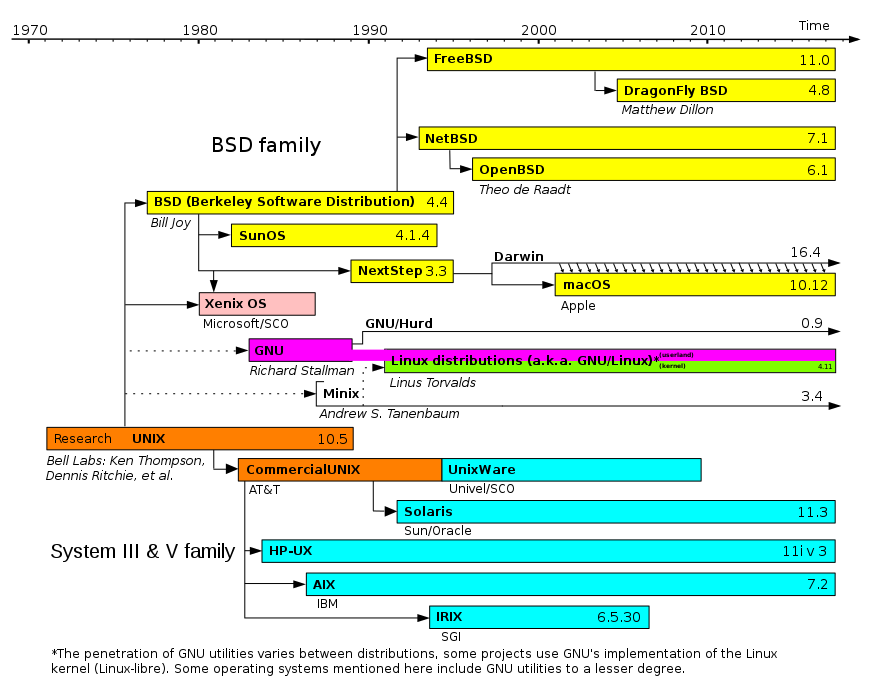
LINUX: An open source operating system forked from Minix
- Free implementation of Unix
- Developed by Linus Torvalds since 1991
- Core maintained and in perpetual evolution
- FSF (Free Software Foundation) to promote free software.
- Free means open source but not necessarily gratis
- the GNU project (Gnu's not Unix) GNU General Public License (GPL)
History
Multics (1965)
Ken Thompson and Dennis RITCHIE createdMultics (MULTiplexed Information and Computing Service) for Bell (AT&T firm)
UNIX (1973)
Denis Ritchie createdTCP/IP Protocol and re-write UNIX (from Multics in C langage)
FSF (1978)
Richard Stallman createdFSF (Free Software Foundation). FSF want to createdand open source operating system.
BSD (1979)
Bill Joy createdBDS, a fork of Unix for university (berkley)
Minix (1980)
Andrew Stuart Tanenbaum createdMinix for educational purposes. it's a Unix-like operating system based on a microkernel architecture
Linux (1991)
Linus Torvalds created linux inspired by Tanenbaum's work on minix
GNU/Linux (1992)
First version of Linux (0.01) was under is own licence. The first version in GNU GPL is 0.99
History of Unix / Linux
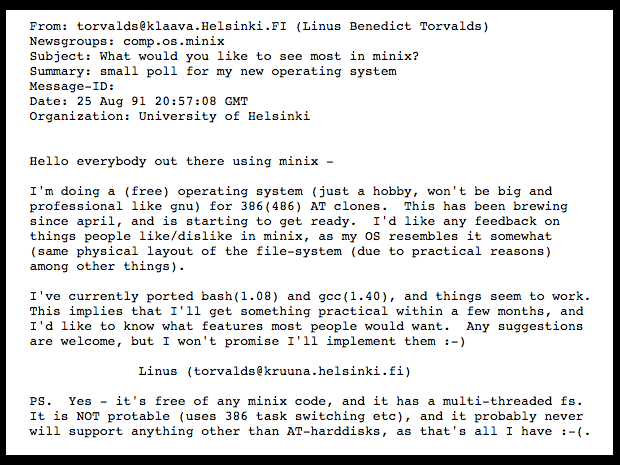
fun fact 1 : bottle in the sea
Here is the original post (Usenet) of Linus Torvals to the newsgroup "comp.os.minix.":[16]
fun fact 2 : Name
Linus Torvalds had wanted to call his invention Freax, a portmanteau of "free", "freak", and "x" (as an allusion to Unix).
The Linux distribution
Install Linux ?
When you have to switch to Linux , you come across the notion of Linux distribution . Initially, this is not necessarily very clear, especially since you have to quickly choose which Linux distribution to install.
Linux vs the World
Unlike Windows or MacOSX, Linux is not owned by any organization, company or publisher.
Linux is under the GNU license and the code is free. There is a differences between Linux and a Distribution (ubuntu, debian, red hat ...)
The part of Linux
Thus, different groups of developers and volunteers helped by computer companies each develop free projects.
In Linux, there are various open source software:
- The Linux kernel is the heart of the operating system.
- The GNU shell utilities in graphic or in terminal and the different commands that we enter
- The X server that produces a graphical desktop
- and the desktop environment that runs on the X server to provide a graphical desktop
Definition
A Linux distribution harmonizes all these sets to provide specific versions of free software. It also offers installation software to allow you to install Linux on a PC, tablet or other types of devices. Then, in order not to have to compile each software, it offers a system of packages .
File system
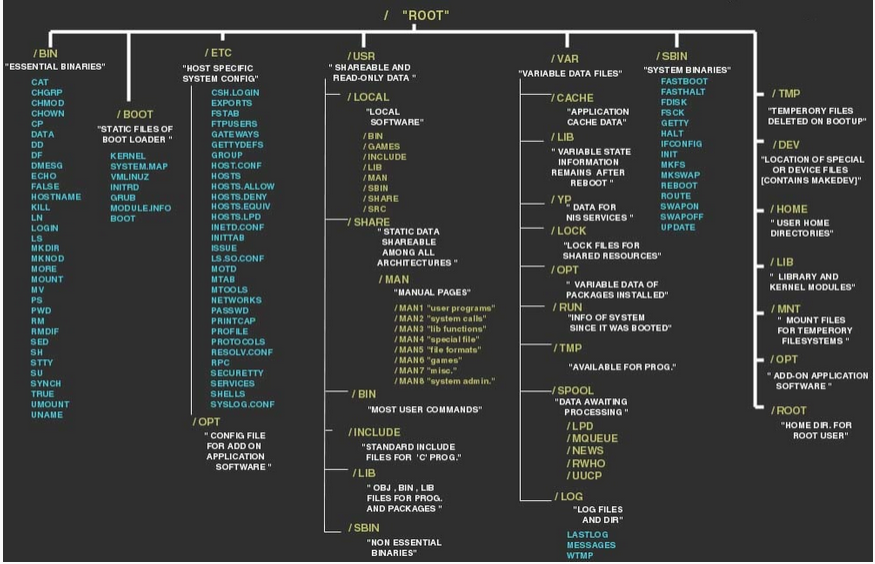
FileSystem Hierarchy Standard or it defines the tree structure and the contents of the main directories of the file systems of the GNU / Linux operating systems and of most Unix systems. We are at version 3 since 2015
Windows
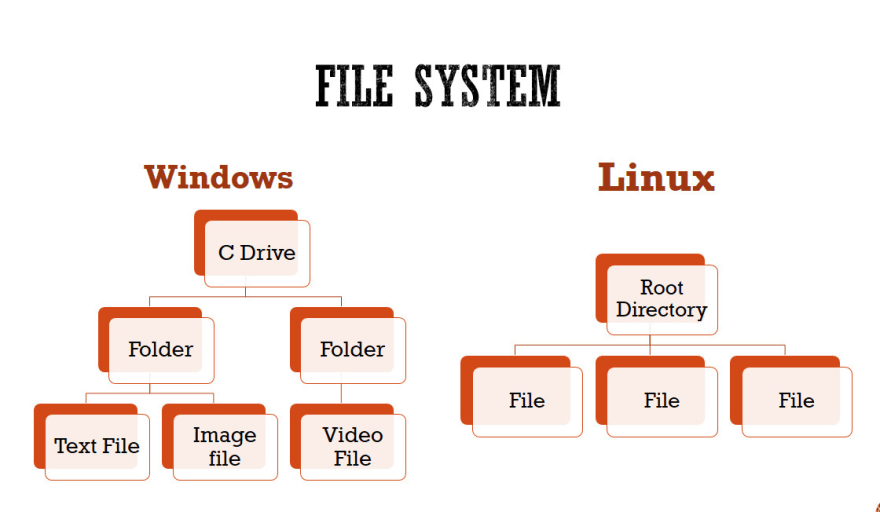
Linux
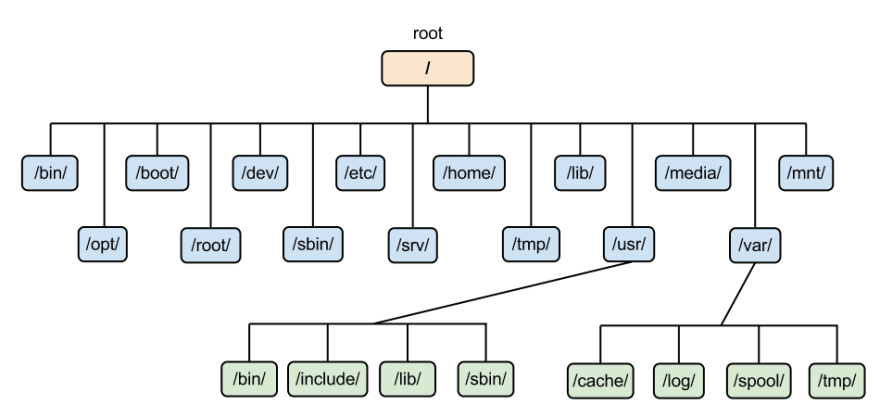
Detail of linux tree
| Directory | Contenu |
|---|---|
| /bin | Binaries (executables = essential commands) |
| /boot | Static files for the boot loader |
| /dev | Device Driver Files |
| /etc | System configuration files |
| /home | User personal directories |
| /lib | Shared libraries and essential kernel modules |
| /media or /mnt | Mount points for removable media |
| /proc | Virtual directory for system information |
| /root | Home directory for the root user |
| /sbin | Essential System Executable |
| /tmp | Temporary files |
| /usr | Secondary hierarchy |
| /var | Variable data |
| /opt | Directory for other software |
Scop on linux tree
Using commands
man - RTFM
The man command is a built-in manual for using Linux commands. It allows users to view the reference manuals of a command or utility run in the terminal.
The man page (short for manual page) includes a command description, applicable options, flags, examples, and other informative sections
command
the vast majority of linux command have a man.
So if you want to know who to use a command you just simply prepended your command to man :
username@hostname:/tmp$ man ls
LS(1)                            User Commands                                                                                 LS(1)

NAME
       ls - list directory contents

SYNOPSIS
       ls [OPTION]... [FILE]...

DESCRIPTION
    List information about the FILEs (the current directory by default).
    Sort entries alphabetically if none of -cftuvSUX nor --sort is specified.

       Mandatory arguments to long options are mandatory for short options too.

       -a, --all
              do not ignore entries starting with .

       -A, --almost-all
              do not list implied . and ..

       --author
              with -l, print the author of each file
Argument / option
when you type commands on a terminal, you must enter arguments or options.
username@hostname:/tmp$ ls -l /tmp
Here we have :
-
'-l' : it's an option
-
'/tmp/' : it's an argument
In fact they are both arguments but the command understand that '-l' is an option and '/tmp/' is an arguemnt.
- -help
the vast majority of linux command have an option '-h' or '--help'
This option (but in fact an argument) allow you to see a simple summury of the command options
username@hostname:/tmp$ ls --help
Utilisation : ls [OPTION]... [FICHIER]...
Afficher des renseignements sur les FICHIERs (du répertoire actuel par défaut).
Trier les entrées alphabétiquement si aucune des options -cftuvSUX ou --sort
ne sont utilisées.

Les arguments obligatoires pour les options longues le sont aussi pour les
options courtes.
  -a, --all                  ne pas ignorer les entrées débutant par .
  -A, --almost-all           ne pas inclure . ou .. dans la liste
      --author               avec -l, afficher l'auteur de chaque fichiers
-h
username@hostname:/tmp$ useradd -h
Utilisation : useradd [options] LOGIN
              useradd -D
              useradd -D [options]

Options :
      --badnames                do not check for bad names
  -b, --base-dir REP_BASE       répertoire de base pour le répertoire personnel
                                du compte du nouvel utilisateur
      --btrfs-subvolume-home    use BTRFS subvolume for home directory
  -c, --comment COMMENTAIRE     définir le champ « GECOS » du compte du
[...]
Special path caracters
- "." (dot) : curent directory
- ".." (dot dot) : is the top directory (parent directory)
- "~" (tilde) : is the directory of the logged user
- "~username" : is the directory of the user
Prompt
The default BASH prompt is the one you see when you first open a terminal or command line. It usually looks something like this:
username@hostname:~$
-
if you see a $ : you are a simple user
-
if you see a # : you are a root (so be carefull)
Where am i ?
username@hostname:~$
With this prompt, you have a clue of where you are in the tree line
The default PROMPT (PS1) have just before the loggin type (user/root) your actual tree line
"~" is your HOME DIRECTORY : /home/username
if you have doubts use the command : pwd
username@hostname:~$ pwd
/home/username
Navigate
Change current directory : cd "Change Directory"
Display the name of the current directory : pwd "Print Working Directory"
How to reach a file
Absolute path
username@hostname:~$ cd /home/username/Documents
username@hostname:~/Documents$ pwd
/home/username/Documents
username@hostname:~$ cd /tmp
username@hostname:/tmp$ pwd
/tmp
We can see that the path is complete from the first FSH folder. Therefore it is understandable on the whole tree structure of the files.
We can say : "from slash"
Relative path :
username@hostname:~$ cd ./Documents/videos
username@hostname:~/Documents/videos$ pwd
/home/username/Documents/videos
username@hostname:~/Documents/videos$ cd ../
username@hostname:~/Documents$ pwd
/home/username/Documents
Here the two examples depend on the current directory
Create / Move / Delete
cp"CoPy" ==> Copy a filemv"MoVe" ==> Move or rename filesrm"ReMove" ==> Delete a filels"LiSt" ==> List the files in a directorymkdir"MaKe DIRectory" ==> Create a directoryrmdir"ReMove DIRectory" ==> Delete an empty directory
Create a file
On linux you have a lot if possibility to create a file:
-
with an application with 'save as'
-
with a CLI application
-
with a reditrecting the information in a file
-
or simply using the 'touch' command
touch create file
touch allow you to create a file if it do not exit
username@hostname:~$ ls
Document
username@hostname:~$ touch MyFile
username@hostname:~$ ls
Document
MyFile
touch modify a file
touch allow you to modifiy the 'modification date' of a file if it exist
username@hostname:~$ touch MyFile
username@hostname:~$ stat ./MyFile
[...]
Modif. : 2022-08-22 18:06:13.555251643 +0200
[...]
username@hostname:~$ touch MyFile
username@hostname:~$ stat ./MyFile
[...]
Modif. : 2022-08-22 18:07:25.805479158 +0200
[...]
Stat
username@hostname:~$ stat ./MyFile
  Fichier : MyFile
   Taille : 0           Blocs : 0          Blocs d'E/S : 4096   fichier vide
Périphérique : fd01h/64769d Inœud : 17961180    Liens : 1
Accès : (0664/-rw-rw-r--)  UID : ( 1000/username)   GID : ( 1000/username)
Accès : 2022-08-22 18:21:26.346538143 +0200
Modif. : 2022-08-22 18:21:26.346538143 +0200
Changt : 2022-08-22 18:21:26.346538143 +0200
  Créé : 2022-08-22 18:21:26.346538143 +0200
Option and argument
For all the next command you have to use this template : COMMAND ORIGIN DESTINATION
COPY
to copy an existing file :
username@hostname:~$ cp MyFile MyCopyFile
to copy an existing directory :
username@hostname:~$ man cp
[...]
       -R, -r, --recursive
              copy directories recursively
[...]
username@hostname:~$ cp /home/username/Documents ./BackupDocument
username@hostname:~$ ls
Documents BackupDocument MyFile MyCopyFile
Here, i am using COPY from an absolute path to a relative path
MOVE
Move can be used to move a file a rename it :
username@hostname:~/Documents $ ls
OrigFile
username@hostname:~/Documents $ mv /home/username/Documents/OrigFile ./RenameFile
username@hostname:~/Documents $ ls
RenameFile
DELETE EMPTY DIRECTORY
to delete a directory you have to use : rmdir This command allow you to delete directory only.
username@hostname:~ $ ls -l
drwxrwxr-x 2 username username 4096 août  31 11:53 NormalDirEmpty
username@hostname:~ $ ls -l NormalDirEmpty/
total 0
username@hostname:~ $ rmdir NormalDirEmpty
username@hostname:~ $ ls -l
total 0
DELETE NON EMPTY DIRECTORY
username@hostname:~ $ ls -l
drwxrwxr-x 2 username username 4096 août  31 11:53 NormalDir
username@hostname:~ $ ls -l NormalDir/
total 0
-rw-rw-r-- 1 username username 0 août  31 11:53 NormalFile
username@hostname:~ $ rmdir NormalDir
rmdir  NormalDir/
rmdir: impossible de supprimer 'NormalDir/': Le dossier n'est pas vide
DELETE FILES
to delete a file you have to use : rm
This command allow you to delete files and directory.
username@hostname:~ $  man rm
[...]
 -r, -R, --recursive
        remove directories and their contents recursively
[...]
username@hostname:~ $ ls -l
drwxrwxr-x 2 username username 4096 août  31 11:53 NormalDir
username@hostname:~ $ ls -l NormalDir/
total 0
-rw-rw-r-- 1 username username 0 août  31 11:53 NormalFile
username@hostname:~ $ rm -r NormalDir
username@hostname:~ $ ls -l
total 0
File types
On UNIX systems everything is represented as a file. The different types of files are:
- Physical files: (-: normal file)
- The directories: (d: directory)
- Physical and symbolic links
- Special files
Physical files
A physical files are the usual files on Linux. They could be text, videos, raw, database ...
username@hostname:~/NormalDir$ ls -l
total 2508
-rw-r--r-- 2 guillaume guillaume 1234    août  30 13:57 NormalFile.txt
-rw-r--r-- 2 guillaume guillaume 4567    août  30 13:58 NormalFile.mkv
-rw-r--r-- 2 guillaume guillaume 7890    août  30 13:59 NormalFile.doc
Directories
A directory ... like on all other operating system ...
username@hostname:~/EmptyDir$ ls -la
total 2524
drwxrwxr-x  3 guillaume guillaume    4096 août  31 11:10 .
drwxrwxr-x 22 guillaume guillaume   12288 août  31 11:10 ..
. : curent directory .. : parent directory -a : All files (classic files and hidden files)
Physical links
Allows you to give several names / access paths to the same file by pointing to a file number. A file can therefore have several names, and will exist as long as it has at least one name.
The file number is contained in the inode table. The inode is the hard disk database for files and directory path.
The command to use for a Physical links is : ln
username@hostname:~/LinkDir$ ls -l
total 2508
-rw-r--r-- 1 guillaume guillaume 1280601 août  30 13:59 OriginFile
username@hostname:~/LinkDir$ ln ./OriginFile ./PhysicakLinkFile
username@hostname:~/LinkDir$ ls -l
total 2508
-rw-r--r-- 2 guillaume guillaume 1280601 août  30 13:59 OriginFile
-rw-r--r-- 2 guillaume guillaume 1280601 août  30 13:59 PhysicakLinkFile
Symbolic links
A symbolic link is a file that points to another file.
If you delete the target file, the link is "dead"
If you remove the link, the target file is not impacted.
This is the closest thing to a shortcut in Windows.
username@hostname:~/LinkDir$ ls -l
total 2508
-rw-r--r-- 1 guillaume guillaume 1280601 août  30 13:59 OriginFile
username@hostname:~/LinkDir$ ln -s ./OriginFile ./SymbolicLinkFile
username@hostname:~/LinkDir$ ls -l
-rw-r--r-- 1 guillaume guillaume 1280601 août  30 13:59 OriginFile
lrwxrwxrwx 1 guillaume guillaume      24 août  31 11:21 SymbolicLinkFile -> OriginFile
File permissions
User Group and Other
On linux ALL the write are based on 3 notions :
- user
- group
- other
Octal write base
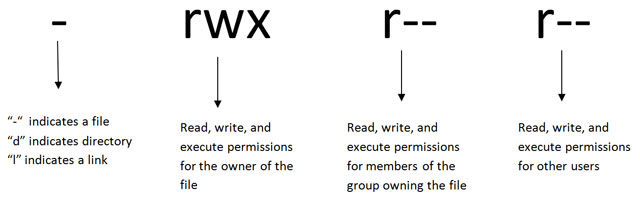
All Octal write
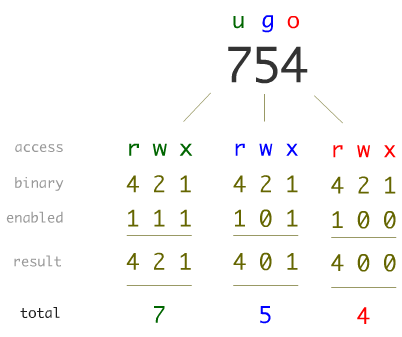
How to change the rights
The chmod command allows you to change the access permissions of a file or directory
chmod g+w fic1chmod o-x repchmod u+rx,g-w fic2chmod u=rwx,g=rx,o=- ficchmod -R a+r rep2chmod 750 fic3
User root
GOD MODE
On any UNIX system, there is a superuser, usually called root, who has full authority.
He can freely access ALL the resources of the machine.
This user has their UID and GID set to 0.
root:x:0:0:root:/root:/bin/bash
su
su is the command which allows to change user
Exemple :
username@hostname:~$ whoami
username
username@hostname:~$ su - root
password :
root@hostname:~# whoami
root
sudo
sudo is the command that allows you to perform an action in the context of another user. To configure sudo you need to edit the /etc/sudoers files
Switch User DO
Example :
username@hostname:~$ whoami
username

username@hostname:~$ sudo -u root whoami
[sudo] username password :
root
User and group management
Login
When a user logs in, he provides a login name and password.
If the connection is successful, a shell is launched and the user is in his working directory, which is initially his login directory.
This information is placed in the /etc/passwd, /etc/shadow and /etc/group files.
    Linux login : gastier
    Password:
    Last login: Sun Nov 1 12:07:37 CET 2017 on pts/3
    Linux anakin 5.8.0-59
    You have new mail.
    gastier@watchmen:~$
/etc/passwd file
login:passwd:UID:GID:GCOS:homedir:shell
- login: login name
- passwd: clear password or x if the password is hashed and therefore stored in the shadow file
- UID (User Identification): user identification number
- GID (Group Identification): number of the user's group
- GCOS: description, usually contains the first and last name
- homedir (home directory): connection directory
- shell: command to be executed during connection (usually the command interpreter: / bin / bash)
/etc/shadow file
user1:$1$Sh1R1/Sl$FfPQjULAhevhi4n7AV.xg.:14393:0:99999:7:::
- login name
- hashed password
- date of the last password change
- number of days to wait before being able to change the password
- number of days after which the password must be changed
- number of days before the expiration of the password and during which the user is notified
- date since which the account is deactivated
- expiry date of the account
- reserved field
/etc/group file
groupname:passwd:GID:members
- groupname: The name of the group
- passwd: encrypted password
- GID (Group Identification): group identifier
-
members: members of the group, separated by a comma
- Exemple : isen:x:1000:alice,kevin
User and group management
Create a new user
There is 2 way to create a user :
-
useradd
-
adduser
useradd
useradd can be "scripted" and used with arguments. It's a non interactive command
isen@hostname:~$ sudo useradd isen
isen@hostname:~$ sudo useradd isen-with-options -m -s /bin/bash
Excepted the error, like all linux commands, if nothing happend ... it's ok :)
adduser
adduser is a prompt comman. It ask you all the minimal information to create a user.
isen@hostname:~$ sudo adduser isen
Ajout de l'utilisateur « isen » ...
Ajout du nouveau groupe « isen » (1002) ...
Ajout du nouvel utilisateur « isen » (1002) avec le groupe « isen » ...
Le répertoire personnel « /home/isen » existe déjà.  Rien n'est copié depuis « /etc/skel ».
Nouveau mot de passe :
Retapez le nouveau mot de passe :
passwd : le mot de passe a été mis à jour avec succès
Modification des informations relatives à l'utilisateur isen
Entrez la nouvelle valeur ou « Entrée » pour conserver la valeur proposée
    Nom complet []: Isen User
    N° de bureau []: 01128736
    Téléphone professionnel []: 8917623498
    Téléphone personnel []: 891726398
    Autre []: isen.fr
Ces informations sont-elles correctes ? [O/n] O
How to change the owner of a file
The chown command allows you to change the owner of a file
chown isen fic2chown -R isen rep
How to change the group of a file
-
The command
chgrpallows you to change the group of a filechgrp isen fic2chgrp -R isen rep
-
The
chowncommand allows you to change the group at the same time as the owner:chown isen:isen fic2
Edition under LINUX/UNIX in text mode
Under Linux, there are several text-based word processors. Text-based mode simply means editing in a terminal Which implies no menus, no images, no formatting
Advantages
* Ultra-fast
* Default on most UNIX/LINUX distributions
* Portable and cross-platform
* Network-accessible
* Very powerful
* Programmable
* Scalable
* Simplified configuration file management.
Disadvantages
* Requires practice
* Difficult to learn
* Aesthetically poor
Terminal-style text editor
Here are the most common and most used text editors under Linux.
- Vi/Vim
- Emacs
- nano
- jupp / joe
In this course, we will focus on Vim, which is a more accessible port of Vi.
Vim is THE most widely used and practical tool for editing code and configuration files.

Vim Basics
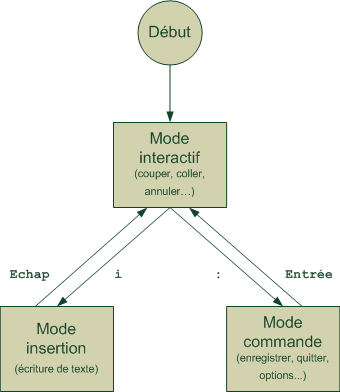
Modes in VIM
In VIM, there are three main modes for using this word processor.
- Interactive mode
- Insert mode
- Command mode
Interactive mode
This is the default mode you start with when launching Vim. You are therefore in interactive mode. In this mode, you cannot write text.
This mode allows you to: copy/paste/delete/select...
To move around in vi, you use the HJKL keys, which correspond to Left Down Up Right respectively.
To move around in vim, you use the Left Down Up Right arrow keys.
-
v: Selects a portion of the text
-
x: Deletes the current character (cut)
-
y: Copies a line or a word
-
d: Cuts a line or a word
-
p: Paste
-
Combo keys:
- yw/dw: Copy/cut the word
- yy/dd: Copy/cut the current line
Insert mode
This is the most 'classic' mode. You type text and it is inserted at the cursor location.
There are several ways to enter this mode. One of the most common is to press the i (insert) key.
Very important: To exit any mode, press the Esc key.
Command Mode
In command mode, you can also:
This mode is the most comprehensive and, above all, the one that gives Vim its full power.
It allows you to run commands such as "quit," "save," etc. You can also use it to enable Vim options:
-
syntax highlighting (:syntax on )
-
display line numbers (:set number)
-
intelligent indentation (:set smartindent)
Executing a Command in VIM
While in command mode, you can retrieve information from the shell (the console) such as ls, locate, cp, etc.
-
either by typing certain commands like:
-
":ls"
-
":locate"
-
-
or by launching a subshell:
-
":sh" (for this mode, once the session ends with exit or CTRL+d, the shell returns control to VIM).
To activate this mode, you must be in interactive mode and press the colon ":". You will validate the command with the Enter key and then return to interactive mode.
action on the file
In command mode, you can also:
- replace text:
:s/old/new/g
- find text:
/string
To find the next occurrence of 'string', press "n". When the document finds nothing at the end of the document, it tells you to start over.
- save:
:w
- quit:
:q