Download SLIDE-C02-bash-EN.pdf
Download C02-bash-EN.pdf
The variables
Variables ?
A variable has 2 elements :
- the name
- the value --> $name
Specific variables : environment
An environment variable is a dynamic variable used by processes or applications to define information paths or shortcuts. You can visualize all your environment variables with the env SHELL command. Usually all the environment variable are in capital case.
- PATH
- PS1
- TERM
- HOME
- SHELL
PATH
PATH is a list of directory. With bash (and not sh) you don't have to write the absolute or relative path of a command. If the command you type exist in one of this directory, bash will call it.
isen@localhost:~$ echo $PATH
/sbin/:/home/isen/bin:/usr/local/bin:/usr/bin:/bin:/usr/local/games:/usr/games
isen@localhost:~$ id
uid=1000(isen) gid=1000(isen) groupes=1000(isen)
isen@localhost:~$ which id
/usr/bin/id
PS1
PS1 stands for "Prompt String One" or "Prompt Statement One"
It is the first prompt string (that you see at a command line).
You can change it easily "live" or in your .bashrc file to be effective in every SHELL terminal
isen@localhost:~$ echo $PS1
echo $PS1
\[\e]0;\u@\h: \w\a\]${debian_chroot:+($debian_chroot)}\[\033[01;32m\]\u@\h\[\033[00m\]:\[\033[01;34m\]\w\[\033[00m\]\$
isen@localhost:~$ PS1="Go for it->"
Go for it->echo $PS1
Go for it->
TERM
TERM variable defines the terminal type.
isen@localhost:~$ echo $TERM
xterm-256color
HOME
HOME is a Linux bash shell variable. It indicates the home directory of the current user. It also represent the default argument for the cd command. The value of this variable is also used when performing tilde expansion.
The value is set with the /etc/passwd file when the operating system is starting
isen@localhost:~$ echo $HOME
/home/isen
isen@localhost:~$ grep isen /etc/passwd
isen:x:1000:1000:A random user:/home/isen:/bin/bash
SHELL
The SHELL is an environment variable. The full pathname to the shell is in this environment variable.
The value is set with the /etc/passwd file when the operating system is starting
isen@localhost:~$ echo $SHELL
/bin/bash
isen@localhost:~$ grep isen /etc/passwd
isen:x:1000:1000:A random user:/home/isen:/bin/bash
List of SHELL linux
There is a lot of other shell on linux :
- Shell Bourne (l'antique shell de Steve Bourne) : /bin/sh
- Korn SHell, the David Korn's shell for UNIX : /bin/ksh and /bin/pdksh (freeware)
- C SHell : /bin/csh
- Zorn SHell : /bin/zsh
- Bash (Bourne Again SHell, the Linux shell) : /bin/bash
Protect a variable
IFS
The IFS is an acronym for Internal Field Separator or Input Field Separator. The IFS is a special shell variable in Bash, ksh, sh, and POSIX. Let us see what IFS is and why you need to use it while writing shell scripts under Linux and Unix.
By default the IFS is compased by:
- Carriage return
- Tabulation
- Space
Change IFS
IFS can be change before using a command or a function.
You may display the actual value of IFS with the following command
isen@localhost:$ echo "--$IFS--"
--
--
Warning: many Linux processes use the IFS.
Protect a variable : Syntax
Theres is three essential quotes in SHELL :
- simple quote ': the string between these will not be interpreted
- double quote ": the string between these will be interpreted (special character like $)
- backquote `: the string between these will be a SHELL COMMAND, you can use $(COMMAND) to make it more readable
Variable visibility 1/4
All your variables will have a "scope", or a visibility. By default, the variables defined in a SHELL terminal are visible in your SHELL terminal and only in it.
isen@localhost:~$ Var=CONTENU
isen@localhost:~$ echo $Var
CONTENU
isen@localhost:~$ bash
isen@localhost:~$ ps
  PID TTY          TIME CMD
 12996 pts/2    00:00:00 bash
 13009 pts/2    00:00:00 bash
 13021 pts/2    00:00:00 ps
isen@localhost:~$ echo $Var

isen@localhost:~$ exit
Variable visibility 2/4
You will have to export a variable to make it visible for other CHILD SHELL Terminal or script
isen@localhost:~$ Var=CONTENU
isen@localhost:~$ echo $Var
CONTENU
isen@localhost:~$ export Var
isen@localhost:~$ bash
isen@localhost:~$ ps
   PID TTY          TIME CMD
  12996 pts/2    00:00:00 bash
  13406 pts/2    00:00:00 bash
  13435 pts/2    00:00:00 ps
isen@localhost:~$ echo $Var
CONTENU
Variable visibility 3/4
The same apply for your script, the scope of your variable will only be inside your script You may source another script to extend the vivibility of your variables to the other script
Consider two scripts Prog1.sh and Prog2.sh as bellow
isen@localhost:~$ cat Prog1.sh
#!/bin/bash
Var=CONTENU
echo "Prog1 : $Var"
./Prog2.sh
isen@localhost:~$ cat Prog2.sh
#!/bin/bash
echo "Prog2 : $Var"
isen@localhost:~$ ./Prog1.sh
Prog1 : CONTENU
Prog2 :
Variable visibility 4/4
Now ! Consider two scripts Prog1.sh and Prog2.sh as bellow
isen@localhost:~$ cat Prog1.sh
#!/bin/bash
Var=CONTENU
echo "Prog1 : $Var"
source ./Prog2.sh
isen@localhost:~$ cat Prog2.sh
#!/bin/bash
echo "Prog2 : $Var"
isen@localhost:~$ ./Prog1.sh
Prog1 : CONTENU
Prog2 : CONTENU
Protect a variable : Exemples
isen@localhost:~$ Var="ONE"
isen@localhost:~$ echo "$Var"_FILE
ONE_FILE
isen@localhost:~$ Var="ONE"
isen@localhost:~$ echo '$Var'_FILE
'$Var'_FILE
isen@localhost:~$ echo '${Var}'_FILE
${Var}_FILE
isen@localhost:~$ echo $Var_FILE
(nohing because Var_FILE dont exist)
isen@localhost:~$ echo ${Var}_FILE
ONE_FILE
isen@localhost:~$ls
C02 C03 C04 data EXAM Old ORIG
isen@localhost:~$ Var=$(ls) #or Var=`ls`
isen@localhost:~$ echo $Var
C02 C03 C04 data EXAM Old ORIG
Scripting base
What is a script
Instead of launching the commands directly in a terminal, we can write a text file with the shebang and the execution rights
username@hostname:~$ cat myfirstscript.sh
#!/bin/bash

echo toto
username@hostname:~$ chmod +x myfirstscript.sh
username@hostname:~$ ./myfirstscript.sh
toto
Advantages/Disadvantages
- Advantages
- More readable
- Saved
- Exportable
- Debugging
- Disadvantages
- Debugging
Variable of a script
| Name | Description |
|---|---|
| \$0 | the name of the current shell program. |
| \$1…\${n} | the n parameters passed to the program (to the shell) when it is called. |
| \$# | the number of parameters passed to the shell program call (not included the \$0 parameter) |
| \$* | the list of parameters passed to the shell program call (not included the \$0 parameter) |
| \$\$ | the current process number (there is a unique number per process on the machine) |
| \$\? | the error code of the last command executed. |
Example of use
username@hostname:~$ cat mysecondscript.sh
#!/bin/bash
echo "Thx to launch ${0}"
echo "There are ${#} arguments"
echo "They are : ${*} but the second is $2"
false
echo ${?}

username@hostname:~$ ./mysecondscript.sh toto titi tutu
Thx to launch ./mysecondscript.sh
There are 3 arguments
They are : toto titi tutu but the second is titi
1
Survival_Kit
Golden rules
- Indent your script
- Comment your script
- Use a Naming rule
- Declare your variable at the start of your script
- Always test your entries
- Give your script some "fresh air"
- Test the return value of your SHELL commands ($?)
- Use the man, level 1 (try a man -k)
- Render your script executable : chmod +x Mynewscript.sh
Golden rules example 1/2
#BAD
if [[ -f $titi ]];then echo "your parameter is a file";cp $1 "$1".old;fi
#GOOD
if [[ -f ${Nom_Fichier_Saisi} ]]
then
    echo "your parameter is a file"
    cp $1 "${Nom_Fichier_Saisi}".old
fi
Golden rules example 2/2
if your script is waiting for an argument representing a name of a file.
#Test of arguments
if [ $# -lt 1 ]
then
    echo "You must give an argument for the script"
    exit 1
fi
#Test of the type of the first argument
if [ -e $1 ]
then
    echo "You must give an valid file name for the first argument for the script"
    exit 2
fi
Algo
IF Condition
IF condition
SO
------> Launch_action
END IF
Example of if condition
isen@localhost:~$ cat exampleIf.sh
#!/bin/bash
if [ $1 -eq 1 ]; then
        echo "The first argument is 1"
fi
isen@localhost:~$ bash exampleIf.sh 2

isen@localhost:~$ bash exampleIf.sh 1
The first argument is 1
if/else condition
IF condition
SO
------> Launch_action
ELSE
------> Launch_action
END IF
Example of if/else condition
isen@localhost:~$ cat exampleIfElse.sh
 #!/bin/bash
if [ $1 -eq 1 ]; then
        echo "The first argument is 1"
else
        echo "The first argument is not 1"
fi
isen@localhost:~$ exempleIfElse.sh 2
The first argument is not 1
isen@localhost:~$ exempleIfElse.sh 1
The first argument is 1
if/elif condition
IF condition
SO
------> Launch_action
ELSE IF other_condition
SO
------> Launch_action
END IF
Example of if/elif condition
isen@localhost:~$ exampleIfelIf.sh
 #!/bin/bash
if [ $1 -eq 1 ]; then
        echo "The first argument is 1"
elif [ $1 -eq 2 ]; then
        echo "The first argument is 2"
fi
isen@localhost:~$ exampleIfelIf.sh 10
isen@localhost:~$ exampleIfelIf.sh 1
The first argument is 1
isen@localhost:~$ exampleIfelIf.sh 2
The first argument is 2
if/elif/else condition
IF condition
SO
------> Launch_action
ELSE IF other_condition
SO
------> Launch_action
ELSE
------> Launch_action
END IF
Exemple of condition if/elif/else
isen@localhost:~$ cat exampleIfelIfElse.sh
 #!/bin/bash
if [ $1 -eq 1 ]; then
        echo "The first argument is 1"
elif [ $1 -eq 2 ]; then
        echo "The first argument is 2"
else
        echo "I do not understant"
fi
isen@localhost:~$ bash exampleIfelIfElse.sh 10
I do not understant
isen@localhost:~$ bash exampleIfelIfElse.sh 1
The first argument is 1
isen@localhost:~$ bash xampleIfelIfElse.sh 2
The first argument is 2
Tests - File
| Operand | Description | example |
|---|---|---|
| -e filename | true if filename exist | [ -e /etc/shadow ] |
| -d filename | true if filename is a directory | [ -d /tmp/trash ] |
| -f filename | true if filename is an ordinary file | [ -f /tmp/Log.txt ] |
| -L filename | true if filename is a symbolic link | [ -L /home ] |
| -r filename | true if filename is readable (r) | [ -r /boot/vmlinuz ] |
| -w filename | true if filename is modifiable (w) | [ -w /var/log ] |
| -x filename | true if filename is an executable (x) | [ -x /sbin/halt ] |
Tests - Strings
| Operand | Description | example |
|---|---|---|
| -z txt | true if the string is empty | [ -z "${VAR}"] |
| -n txt | true if the string is NOT empty | [ -n "${VAR}"] |
| txt = txt | true if the two string are equal | [ "${VAR}" = "toto" ] |
| txt != txt | true if the two string are NOT equal | [ "${VAR}" != "toto" ] |
Tests - Numeric
| Operand | Description | example |
|---|---|---|
| num1 -eq num2 | equality | [ $Number -eq 42 ] |
| num1 -ne num2 | not equal | [ $Number -ne 42 ] |
| num1 -lt num2 | lesser than (<) | [ $Number -lt 42 ] |
| num1 -le num2 | lesser or equal (<=) | [ $Number -le 42 ] |
| num1 -gt num2 | greater than (>) | [ $Number -gt 42 ] |
| num1 -ge num2 | greater or equal (>=) | [ $Number -ge 42 ] |
Example of test (1/2)
#!/bin/bash
# directory exists ? 1/2
test -d /home/isen
rc=$?
if [ $rc -ne 0 ]; then
    echo "The directory /home/isen does not exist"
fi
Example de test (2/2)
#!/bin/bash
# directory exists ? 2/2
if [ -d "/home/isen" ]; then
        echo "the directory /home/isen exists"
fi
# comparison of 2 strings
if [ "toto" = "titi" ]; then
        echo "toto is not equal to titi"
fi
While loop
WHILE condition
DO
------> Launch_action
RESTART
Example of while loop (1/2)
isen@localhost:~$ cat while.sh
#!/bin/bash
a=0
while [ $a -le 3 ]
do
    echo "$a"
    a=$(( $a + 1 ))
done

isen@localhost:~$ bash while.sh
0
1
2
3
Example of while loop (2/2)
while true; do
    echo $RANDOM
done
The bash is compiled as a 64-bit monothread. With this command your bash will use 100% of a CPU core. To protect your CPU, always put an "useless/time-out" action
while true; do
    echo $RANDOM
    sleep 1
done
for loop
FOR variable IN value1 value2 value3
DO
------> Launch_action
NEXT_ACTION
Example of for loop (1/2)
isen@localhost:~$ cat for1.sh
#!/bin/bash
for var in 'value1' 'value2' 'value3'; do
    echo "Var =  ${var}" ;
done

isen@localhost:~$ bash for1.sh
Var = value1
Var = value2
Var = value3
Example of for loop (2/2)
To get closer to the c code (this syntax is not widely used in bash):
isen@localhost:~$ cat for2.sh
#!/bin/bash
for i in $(seq 0 2)
do
    echo $i
done

isen@localhost:~$ bash for2.sh
0
1
2
This syntax $(seq 0 3) is equivalent to ((i=0;i<=3;i++))
Case/Esac
case ${vars} in
    1)  command1
        command1bis
        ;;
    2)  command2
        command2bis
        ;;
    *)  commanddefault
        commanddefault2
        ;;
esac
Example of Case/Esac
isen@localhost:~$ cat myScriptCase.sh
#!/bin/bash
case ${1} in
    toto) echo "toto is a beautifull name";;
    titi) echo "I prefer toto as a name";;
    *) echo "i do not understand"
esac

isen@localhost:~$ bash myScriptCase.sh toto
toto is a beautifull name
isen@localhost:~$ bash myScriptCase.sh titi
I prefer toto as a name
isen@localhost:~$ bash myScriptCase.sh Loic
i do not understand
BREAK/CONTINUE
isen@localhost:~$ cat for3.sh
#!/bin/bash
for var in value1 value2 value3 value4 value5; do
    [ "$var" = "value2" ] && continue
    [ "$var" = "value4" ] && break
    echo $var
done

isen@localhost:~$ bash for3.sh
value1
value3
BREAK = stop the loop
CONTINUE = go to the next iterration
Process management
Linux being a multitasking system, several programs can run at the same time.
When a program is started, a process is created. This is an active entity that has characteristics (priority, registers, ordinal counter, memory, etc.). Some characteristics may change over time
The system identifies the processes using an identifier (PID = Process IDentification).
The management of processes in Linux is said to be hierarchical.
A process can itself create another process (fork + exec). The created process is called a child process. The creator is called the parent process.
nice & renice
The nice and renice commands allow you to set or change the priority of a process. The range of possible values is -20 (most favorable priority) to 19 (least favorable).
isen@localhost:~$ nice -n -20 find / -type f -name "*.sh"
isen@localhost:~$ renice 20 7643
kill
The kill command sends a signal to a process. Overlays to the kill command exist killall, pgrep / pkill, xkill
isen@localhost:~$ kill 456
isen@localhost:~$ kill -9 -1
isen@localhost:~$ pkill firefox
Managing tasks in an interactive session
Interactive processes are started and managed from the user's terminal. There are 2 modes:
-
Foreground mode
-
Background mode
Managing tasks in an interactive session - Foreground mode
The process monopolizes the terminal until its termination
isen@localhost:~$ sleep 10
[...]
Managing tasks in an interactive session - Mode background
The process works in parallel with the terminal
isen@localhost:~$ sleep 10 &
[1] 3384
$
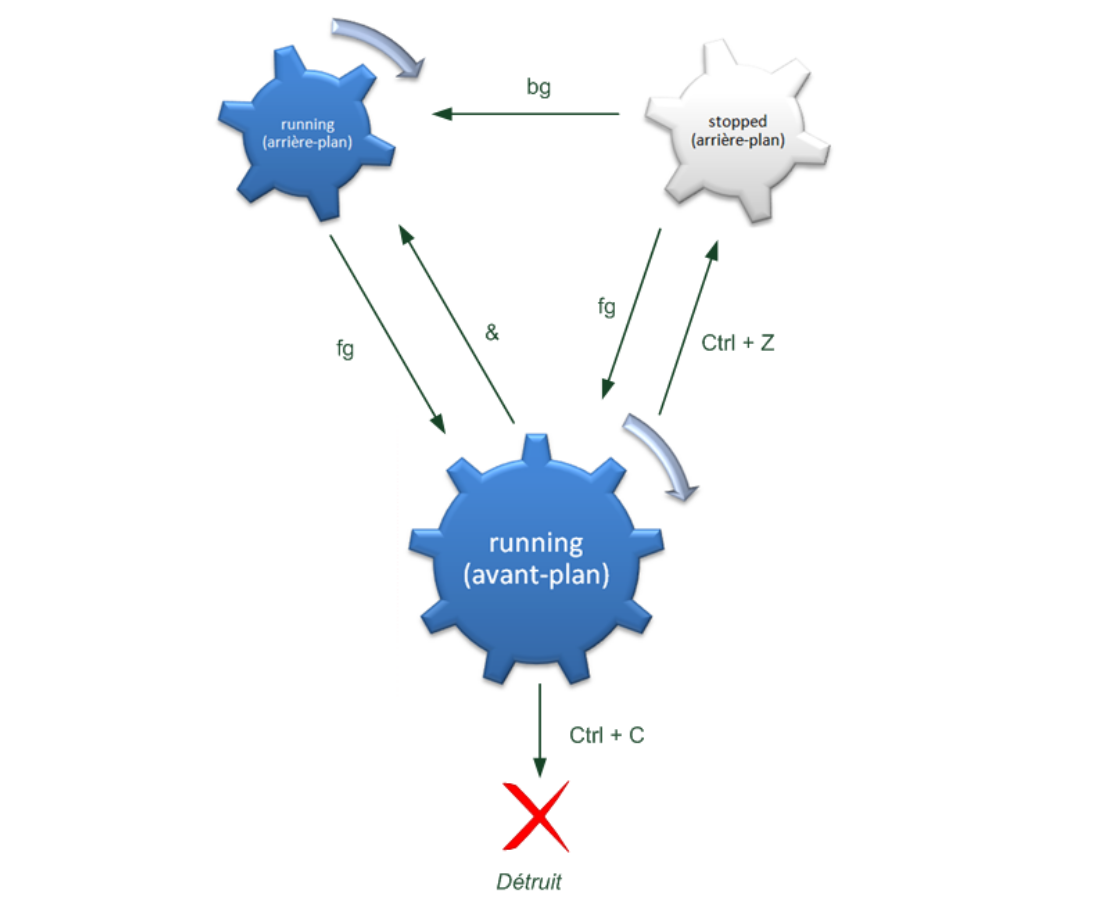
The "ctrl-z" key sequence and the commands "jobs, bg, fg commands" allow you to switch a process from one mode to the other.
Synthesis
Display the processes
You can use the SHELL command ps to display all the processes currently in execution on your computer
example to see the processes belonging to your current SHELL :
isen@localhost:~$ ps
   3837 pts/2    00:00:00 bash
 137967 pts/2    00:00:09 evince
 144605 pts/2    00:00:00 ps
example to see the processes belonging to you current owner :
isen@localhost:~$ ps -u isen
   PID TTY          TIME CMD
   2053 ?        00:00:02 systemd
   2054 ?        00:00:00 (sd-pam)
   2059 ?        00:04:16 pulseaudio
....